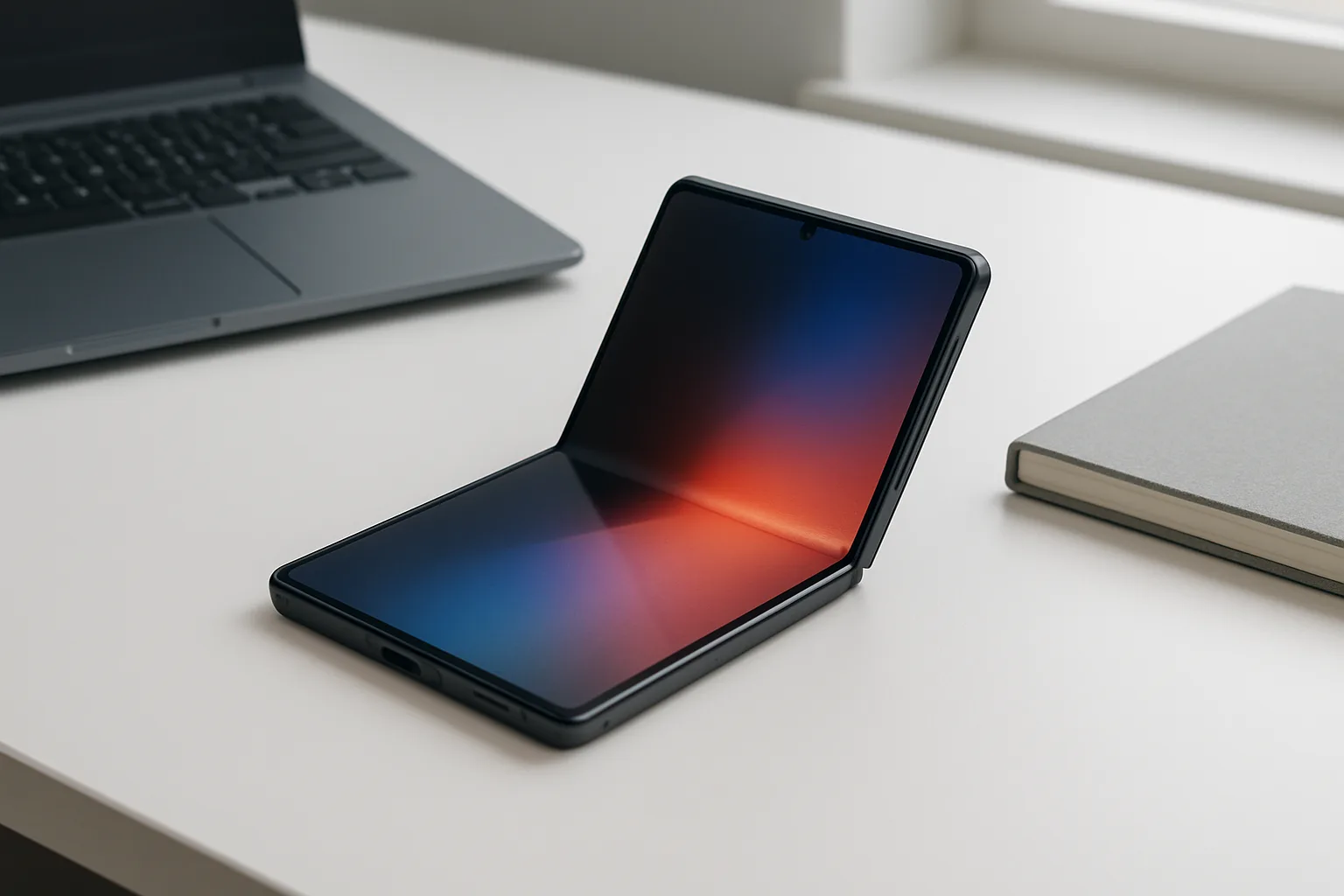
The Galaxy Z Fold 8 is not just another slab phone with a hinge. Its short, wide design and tablet-like inner screen make it feel radically different from other book-style foldables — and if you treat it like a normal phone, you’re wasting what you paid for. If you just unboxed your Galaxy Z Fold 8, these are the first five things you should do to actually unlock what this hardware can do.
1. Turn the Galaxy Z Fold 8 into a multitasking beast
If you bought a Galaxy Z Fold 8, you paid laptop money for a phone. The good news is that its multitasking tools really can justify the price — as long as you set them up properly.
On the big inner display, open your first app, then tap the small dash at the top of the window. From there, you can drop into split-screen or pop the app into a floating window. Pick your second app and you’ve instantly got a dual-pane workspace.
This is where the Z Fold 8’s wider aspect ratio comes into its own. Two apps side by side don’t feel squashed the way they do on tall, narrow foldables. You can drag the divider to create a 90:10 split, keeping one app effectively full screen while the second sits ready for quick reference. It’s perfect for:
- Copying text from email into a document or calendar
- Running chat apps alongside a browser window
- Keeping music controls or a to-do list docked while you work
Once you find combos you like, save them. With two apps open, tap the three dots between them and create an app pair. Add that pair to the Edge Panel so it’s always one swipe away. Spend 10 minutes building out your go-to pairs (mail + calendar, browser + notes, maps + messages) and the Z Fold 8 starts to feel less like a phone and more like a mini workstation you can flick open on demand.
And if you want to go further, the Galaxy Z Fold 8 can run three apps side by side, like Samsung’s tablets. On a 7.6-inch inner screen it’s tight, but for tasks like reference material + chat + browser, it’s a powerful option that regular Galaxy phones — and even the pricier Z Fold 8 Ultra — don’t match in quite the same way.
2. Get comfortable flipping orientations
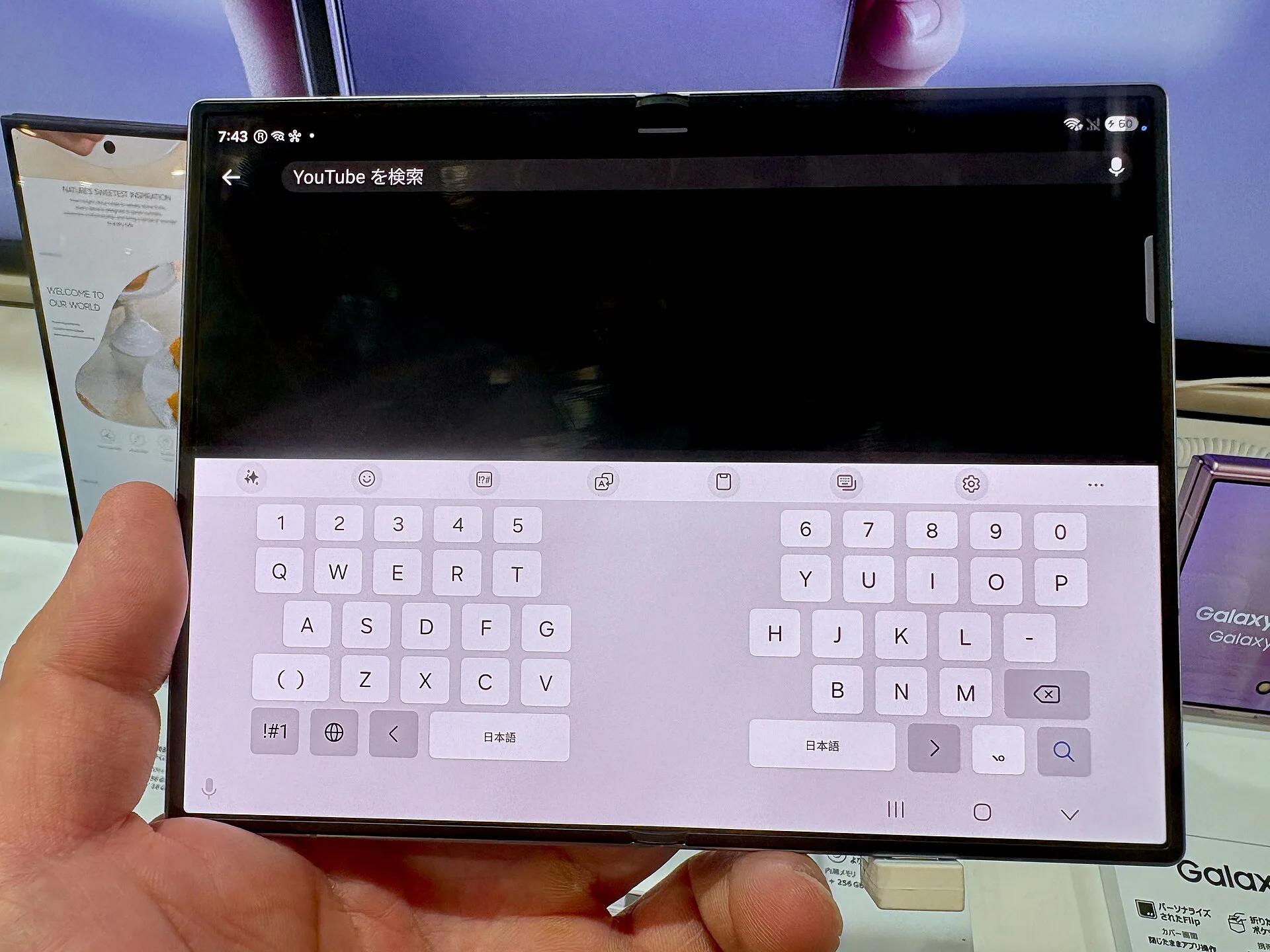
The Galaxy Z Fold 8 is unusual: it’s genuinely happy in both landscape and portrait on the inner screen. That’s not true of every foldable.
In landscape, you get a compact tablet feel that’s great for video, email, docs and multitasking. But when an app feels squashed or too horizontally stretched — social feeds like Threads or Instagram in particular — rotating into portrait can completely change the experience.
Turn the Z Fold 8 upright and it behaves like a typical 7- to 8-inch tablet. Scrolling feeds feel natural, reading long articles is more comfortable, and you still have enough width that the UI doesn’t feel cramped. Crucially, the form factor stays manageable in your hands, unlike some larger foldables that become ungainly in portrait.
The trick is to lean into that flexibility instead of picking one orientation and sticking with it. Use landscape when you’re working or watching, then rotate to portrait when you’re reading or scrolling. The Fold 8’s short, wide shape is designed to let you bounce between those modes fluidly — it’s a huge part of why this phone feels different in daily use.
3. Dive into Samsung Labs and unshackle your apps
Out of the box, the Galaxy Z Fold 8 is holding back a lot of what it can do. Samsung tucks its most experimental (and most useful) layout tweaks under a section called Labs, and this should be one of the first places you visit.
Head to Settings > Advanced features > Labs. The key toggle to flip is the option to enable multi-window for all apps. That forces software that wasn’t officially designed for multitasking to run in split screen or in floating windows on the Fold 8.
Not every app will look perfect. You may run into odd aspect ratios or UI quirks, but the trade-off is absolutely worth it. Having the freedom to pin almost any app next to your browser, email, or notes turns the inner screen into a true canvas instead of a set of fixed boxes.
While you’re in Labs, check orientation settings for your most-used apps. Many popular services are already set to support landscape on the Fold 8, but some high-profile ones — Instagram, for example — may not be. Enabling wider-screen support gives you a meaningfully better experience, especially on that short, wide inner display.
4. Embrace tent mode for video — even without Flex Mode
The Galaxy Z Fold 8 doesn’t lean on Flex Mode the way some other foldables do, and that’s sparked plenty of complaints. But for media, there’s a better trick here anyway: tent mode on the outer display.
Flip the Fold 8 into an inverted “V” and stand it on a table with the cover screen facing you. The 16:10 outer display turns into a surprisingly good little cinema. On other Fold-style devices, tent mode often feels like a gimmick because video ends up too small or oddly framed. On the Galaxy Z Fold 8, that outer panel’s shape and size make video look genuinely good.
The practical upside is huge. You can drop the phone on a desk, counter, or airplane tray and watch content hands-free, without a case stand or separate kickstand. It’s ideal for:
- Propping up the phone for YouTube while you cook
- Watching shows on the train or plane without holding the device
- Quick video calls where you don’t want to fumble with angles
You lose some of the Flex Mode tricks other foldables lean on, but if what you care about is actually watching things comfortably, tent mode on the outer display more than makes up for it.
5. Treat the cover and inner screens like two different devices
By default, the Galaxy Z Fold 8 does something very smart: it does not mirror your home screen layout between the cover and inner displays. That’s a huge quality-of-life win, and you should absolutely lean into it.
Use the outer panel like a quick-access phone: staple apps and light widgets only. Think messages, calls, maps, your main social apps, and maybe a small weather or calendar widget. Keep it clean so you can glance and go.
The inner screen, meanwhile, should be set up like a compact tablet. This is where you pin your productivity tools, entertainment apps, and those app pairs you created earlier. Organize it for focus sessions — reading, planning trips, editing documents, managing your inbox.
Once you mentally separate the outer and inner displays, the Fold 8 stops feeling like one slightly awkward phone and starts to feel like two purpose-built devices sharing a brain: a fast, one-handed phone on the outside, and a multi-window tablet on the inside.
Bonus: Build habits that justify the foldable price
The Galaxy Z Fold 8 only makes sense if you use it differently from a normal flagship. That means building a few micro-habits into your day:
- Open the inner display on purpose for work blocks instead of mindless scrolling.
- Default to app pairs when you need to get something done, not just when you remember they exist.
- Rotate the device whenever something feels awkward instead of fighting a bad layout.
- Use tent mode instead of holding the phone any time you’re watching for more than a couple of minutes.
Those small changes are what transform the Fold 8 from a novelty into a tool that actually earns the space in your pocket and the dent in your wallet.
What This Means
The Galaxy Z Fold 8 isn’t trying to be a regular phone that just happens to fold. Its wider aspect ratio, versatile orientations, multitasking chops, and split personality between cover and inner screens make it closer to a tiny dual-role computer.
Spend a little time up front setting up multitasking, exploring Labs, dialing in tent mode, and tailoring each screen for a different job, and the Fold 8 feels special in a way that earlier book-style foldables didn’t quite nail. Ignore all that and use it like any other Android flagship, and you’re effectively paying premium money for a thicker phone.
If you’ve just bought a Galaxy Z Fold 8, treat day one as setup day, not just sign-in-and-go. Once it’s tuned to how you actually work and watch, this is one of the few phones that can genuinely change how you use your pocket computer — not just what it looks like.
Photo: Kyu3a / CC BY-SA 4.0 via Wikimedia Commons