If you’re a creator in India, the best free AI video editing apps can feel like cheat codes: automatic captions, script-to-video, background removal, audio cleanup – all without paying for a desktop editing suite.
But there’s always a catch. Free plans often mean watermarks, limited AI runs per month, or key features locked behind a paywall. The trick is knowing which app gives you the most useful AI tools before you hit those limits.
Why AI video editing matters for Indian creators
Short-form and YouTube-first creators are publishing more often than ever, and editing is usually the slowest part of the pipeline. AI video editing apps promise to speed up the boring stuff: captioning, trimming, matching clips to music, cleaning noisy audio, and even building an entire video from a script.
For creators in India, where a lot of work happens on budget Android phones, mid-range laptops, or café Wi‑Fi, these free or free-tier apps can be the difference between posting twice a week and posting daily. The downside: every platform defines “free” differently.
- Some cap the number of AI tasks you can run each month.
- Some add a visible watermark to every export on the free plan.
- Some keep their best AI features locked for paying users only.
Still, if you pick carefully, you can stack a few of these tools and get a surprisingly powerful AI-assisted workflow without paying a rupee.
CapCut: The easiest AI editor for Reels and Shorts
CapCut has quietly become the default AI video editing app for a lot of short-form creators. If your main output is Instagram Reels, YouTube Shorts, or snackable vertical clips, it’s one of the smoothest ways to get from rough footage to a polished post.
Key free AI features in CapCut
- Automatic captions: Ideal if you’re shooting talking-head content, interviews, or tutorials. The app transcribes speech into subtitles so you don’t have to type them line by line, and you can jump in after to fix mistakes or adjust timing.
- Background removal: Lets you cut yourself (or any subject) out of the original environment without needing a green screen. That’s useful if you’re filming in a cluttered room but want a clean, stylised background.
- Noise reduction: Cleans up audio recorded in busy streets, cafés, or echoey rooms – all very common shooting locations in Indian cities.
On top of the AI, CapCut also offers templates, effects, and a built-in music library, which cuts down how long you spend figuring out pacing and transitions. For creators churning out multiple clips a day, that time saved is almost as valuable as the AI itself.
Where the free CapCut plan hits its limits
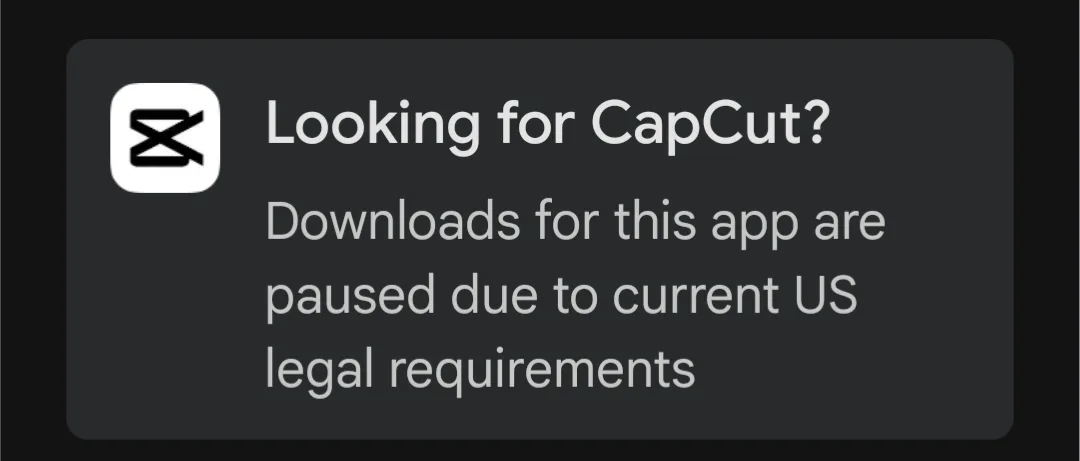
The catch is that not every AI feature is unlocked on the free tier. Some effects, assets, or higher-end AI tools may be reserved for paying users or tied to region-specific availability. That makes it important to explore which tools are free in your version before you build a full workflow around them.
Used right, though, CapCut can take on most of the repetitive edit work for vertical content while you focus on scripting, performance, and thumbnails.
InVideo AI: Turn scripts into videos (with a watermark)
If your strength is writing, not editing, InVideo AI sits on the other end of the spectrum from CapCut. Instead of starting from raw footage, you can feed it an idea or script and let the platform generate a complete video.
What InVideo AI can do on its free plan
- Text-to-video creation: Start from an idea or existing script and have the tool generate a structured video with visuals, voiceover, subtitles, and music around it.
- Script support: The system can help expand a prompt into a more polished script, then turn that into an initial edit.
- Text-based editing: Rather than scrubbing a timeline, you can use written instructions to adjust the video – a big help if you don’t want to dive into traditional NLE workflows.
This is especially useful for educational channels, explainers, listicles, and faceless content – areas where consistency and volume matter more than high-end cinematography. Hindi or regional-language creators who already have scripts for five-minute explainers can offload the first rough cut to AI instead of manually hunting for stock clips.
The big trade-off: watermarks and usage caps
InVideo AI does offer a free plan, but it comes with two major strings attached:
- Usage limits: You can only run a limited number of AI tasks or generate a limited duration of content before you hit the cap.
- Watermarked exports: Videos produced on the free tier carry a visible watermark, which is a problem if you’re trying to look professional or build a brand.
That makes InVideo AI better for trial runs, experimentation, or occasional videos rather than a full-time free solution. It’s a strong assistant if you want to test an AI-first workflow before justifying a paid plan.
YouTube Create: AI tools built directly into YouTube
YouTube Create is tailored for one specific type of user: people whose main home is YouTube, especially Shorts. It’s a free mobile app with AI video editing tools designed to keep you inside the YouTube ecosystem from first cut to publish.
AI video editing tools in YouTube Create
- Automatic captions: Like other editors, it can transcribe speech and generate subtitles for your videos.
- Audio cleanup: Targets background noise – a lifesaver if you’re recording vlogs or commentary on a phone in busy outdoor locations.
- Beat matching: Helps sync cuts and clips to music automatically, saving you from manually nudging every clip to hit the drop.
- Voiceovers, music, and effects: Built-in assets streamline the process of turning raw clips into something watchable on mobile.
Recently, YouTube Create has started rolling out AI features aimed more at generating content than just editing it. Gemini-powered tools can create short vertical clips from text prompts, and an Edit with AI option can take a set of photos and video clips and assemble a first draft edit.
Why YouTube-first creators should care
Because YouTube Create is hooked directly into your channel, there’s no exporting, re-uploading, or juggling file formats. You edit in the app and push straight to your YouTube feed or Shorts shelf. For creators in India relying on patchy mobile data, skipping the extra upload step is a big practical win.
There are some catches: certain AI features have availability or eligibility requirements, so not every creator will see every tool in the app. But if your content strategy revolves around YouTube anyway, this is one of the most efficient free AI video editing apps you can add to your stack.
DaVinci Resolve: Pro-grade editing with powerful free tools
Most mobile-first AI video editing apps are built for speed and convenience. DaVinci Resolve is different: it’s a full-blown professional desktop editor that just happens to have a very capable free version.
Where the mobile apps shine on quick Shorts and Reels, DaVinci Resolve is better suited to longer, more detailed projects – think YouTube explainers, cinematic vlogs, long-form commentary, or multi-camera projects.
Why it’s worth the extra effort
The learning curve is steeper than something like CapCut or YouTube Create, but in return you get the kind of timeline control, colour grading, and audio tools that power full-time creator channels and even indie films. The free version includes advanced desktop editing options that can carry you a long way before you need to consider the paid Studio license.
For Indian creators who see themselves eventually moving into higher-end production while still leaning on AI for speed, DaVinci Resolve is the platform you grow into – especially if you’re already editing on a PC or laptop.
How to choose the right free AI video editor for you
Because every free plan has strings attached, the best AI video editing app for you depends on your content type, device, and tolerance for watermarks and limits.
Match the app to your workflow
- Short-form, vertical content (Reels, Shorts): Start with CapCut for templates, captions, and quick cleanups. Use YouTube Create if Shorts are your main focus and you want a YouTube-native workflow.
- Scripted explainers and faceless videos: Test InVideo AI to turn scripts or ideas into draft edits. Just be ready to deal with watermarks on the free plan.
- Longer YouTube videos or complex edits: Invest time learning DaVinci Resolve on desktop. You can still use CapCut or YouTube Create for short clips and social teasers.
Understand the real cost of “free”
Even on zero-cost plans, there are trade-offs:
- Watermarks: Fine for testing and learning, but painful if you’re pitching brands or trying to position yourself as a premium creator.
- AI usage caps: You might only get a fixed number of captioning runs, background removals, or text-to-video generations per month.
- Feature lock-in: The eye-catching AI features in promo reels aren’t always available on the free tier or in every region.
The smart approach is to mix and match. Use one tool’s free AI captions, another’s script-to-video, and a third’s audio cleanup. As your channel grows, you’ll know exactly which paid upgrade will save you the most time because you’ve already stress-tested the free tiers.
What This Means
The best free AI video editing apps for creators in India aren’t magic bullets, but they are real force multipliers. They won’t fix a weak idea or bad storytelling, and free plans will always come with strings like limited AI usage, watermarked exports, or locked features.
But if you’re willing to juggle a couple of apps and accept those limits, you can get a serious boost in speed and polish without paying upfront. CapCut, InVideo AI, YouTube Create, and DaVinci Resolve each cover a different slice of the creator workflow. Together, they’re turning editing from a technical bottleneck into something much closer to a creative choice – and that’s exactly where you want to be as a modern creator.
Photo: focal5 / BY-NC via Openverse | Photo: Google / Public domain via Wikimedia Commons