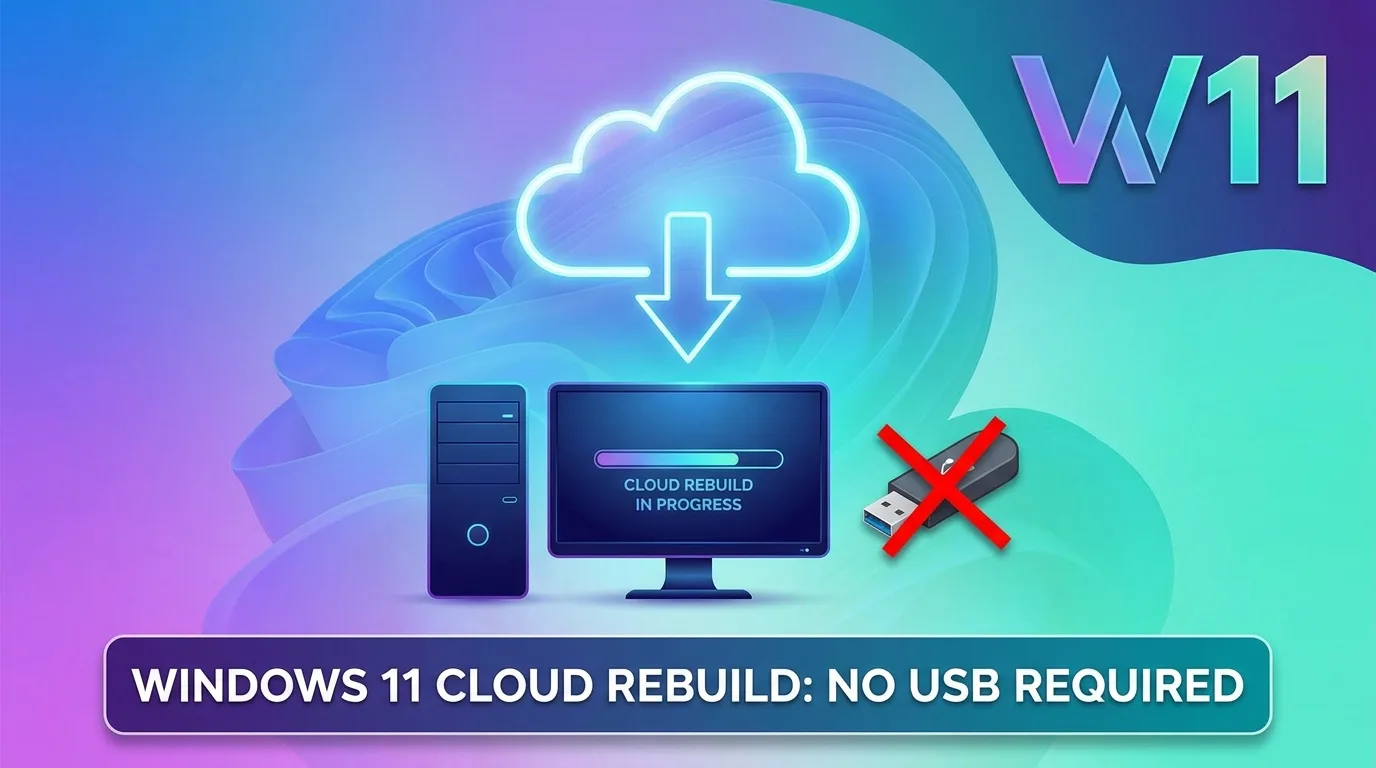
For decades, the ritual has been the same: your Windows PC dies, refuses to boot, and you find yourself hunting for a USB stick, another working computer, and the patience to build install media from scratch. Microsoft wants to kill that ritual. The company has begun testing Cloud Rebuild, a new Windows 11 recovery feature that can completely reinstall the operating system straight from Microsoft’s servers — even when Windows won’t start at all. No USB drive. No recovery partition. No custom image. Just a network connection and a few clicks inside the Windows Recovery Environment.
First teased at Microsoft’s Ignite conference in November 2025, Cloud Rebuild is now live in preview for Windows Insiders, and it could reshape how both IT departments and advanced users rescue broken machines. Here’s everything we know so far, how it works, and where it falls short.
What Is Cloud Rebuild?
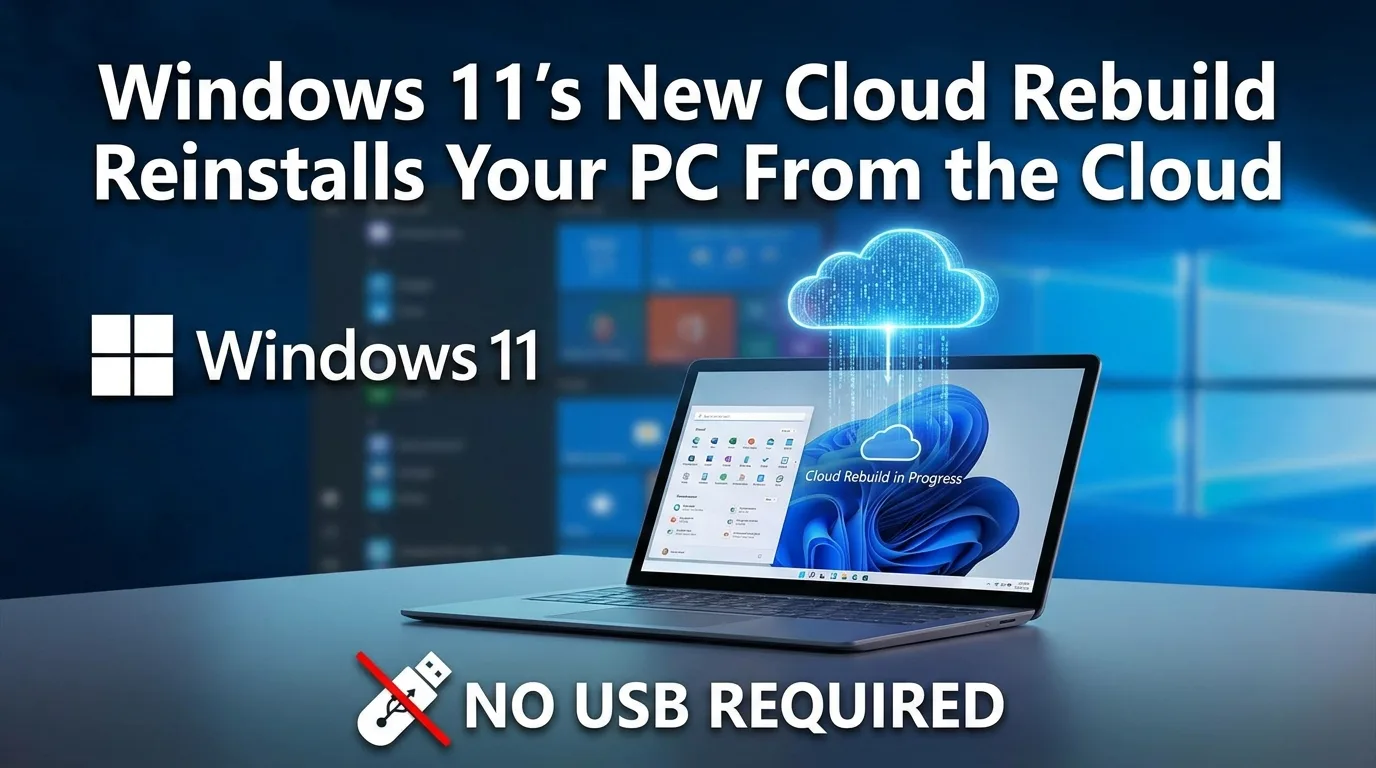
Cloud Rebuild is a recovery tool that restores a Windows 11 PC to a clean, known-good state by performing a full operating system reinstall. The defining trick is where it pulls its files from: rather than relying on recovery data already sitting on your drive, Cloud Rebuild downloads both the target Windows image and the device’s hardware drivers directly from Windows Update.
That distinction matters more than it might sound. Because it doesn’t depend on the health of your currently installed OS, Cloud Rebuild can run even on a machine that’s been corrupted by malware, wrecked by a bad update, or left completely unbootable. When the process finishes, the PC comes back fully functional — drivers included — and boots into the standard out-of-box experience (OOBE), exactly like a brand-new computer.
The feature is part of Microsoft’s broader Windows Resiliency Initiative, the reliability push the company kicked into high gear after the 2024 CrowdStrike outage left millions of Windows machines stuck on boot screens worldwide. The lesson Microsoft took from that disaster: the endpoint needs more ways to recover without a technician physically touching every keyboard.
How Cloud Rebuild Differs From “Reset This PC”
If you’ve used Windows for a while, you might be thinking this sounds a lot like the existing “Reset this PC” feature, which already offers a cloud download option. But the two are built for very different scenarios.
The key difference is dependency. “Reset this PC” — even with its cloud download option — still leans on the device’s existing recovery infrastructure and pulls drivers locally. That’s fine when Windows can still boot. Cloud Rebuild, by contrast, fetches a complete fresh image and matching drivers from Microsoft’s servers, making it the better rescue tool precisely when the OS is too damaged to trust.
Here’s how the two options stack up:
| Feature | Reset This PC | Cloud Rebuild |
| Works when Windows won’t boot | Limited | Yes |
| Downloads fresh drivers from Windows Update | No | Yes |
| Requires USB install media | No | No |
| Depends on local recovery files | Yes | No |
| Option to keep apps and files | Yes | No |
| Best for | Minor issues, bootable PCs | Corrupted, unbootable systems |
The trade-off is stark on that last row. “Reset this PC” lets you keep your files and applications if you choose. Cloud Rebuild does not — it’s strictly a clean-slate reinstall.
How to Use Cloud Rebuild
The process runs entirely inside the Windows Recovery Environment (WinRE), which is exactly why it can operate on a machine that won’t otherwise start. Here’s the flow:
- Boot into the Windows Recovery Environment and navigate to Troubleshoot > Recovery and uninstall > Cloud rebuild.
- Connect to the internet from within WinRE using either wired Ethernet or a Wi-Fi network.
- Review the target Windows build, edition, and language that will be installed.
- Confirm the data-loss warning, and the rebuild begins.
In the current Insider preview, Cloud Rebuild can be launched two ways: from the WinRE troubleshooting menu by a user with physical access to the device, or from an elevated command prompt in Windows by a local administrator. Microsoft has said that later in 2026, admins will be able to trigger it remotely through Microsoft Intune — a crucial capability for managing fleets of machines during a widespread outage.
What You Need First
Cloud Rebuild has a few hard requirements. The device must be running compatible Windows 11 hardware, WinRE must be enabled, and — critically — you need working network connectivity from inside the recovery environment. That last point means device manufacturers have to bundle compatible network drivers into WinRE for the feature to function. The connection must be Ethernet or WPA2 Personal Wi-Fi.
The Big Catch: It Wipes Everything
This is the part that deserves a bold warning label. Cloud Rebuild performs a complete wipe of the system drive. There is no option to keep your data. Everything local is erased, including:
- User accounts
- Installed applications
- Personal files stored locally
- System settings and configuration changes
Only content synced to the cloud — files backed up to OneDrive, for example — survives and reappears after you sign back in. In practice, you should treat Cloud Rebuild as the exact equivalent of a fresh, clean Windows 11 installation. Back up anything you care about before you start, because there’s no undo button.
It’s worth noting who this is really aimed at. While advanced home users can absolutely benefit from it, Microsoft is positioning Cloud Rebuild primarily at system administrators and IT professionals, largely because of that destructive, no-going-back nature.
Watch for Error Code 0xc1900200
If your rebuild fails with error 0xc1900200, it usually means the device doesn’t meet Windows 11’s minimum hardware requirements or is missing a required driver. The most common culprit is a disabled Trusted Platform Module (TPM). The fix is to enter your UEFI/BIOS setup, confirm TPM (sometimes labeled PTT, fTPM, or Security Device) is enabled, save, and retry. You can verify it’s working in Windows by running tpm.msc and checking that the status reads ready for use.
Where Cloud Rebuild Fits in Microsoft’s Recovery Lineup
Cloud Rebuild isn’t launching alone. It’s the heaviest hammer in a growing recovery toolkit Microsoft has been rolling out under the Windows Resiliency Initiative. Understanding the other tools helps clarify when you’d actually reach for a full rebuild.
Point-in-Time Restore (PITR)
Announced alongside Cloud Rebuild at Ignite, Point-in-Time Restore lets you roll a system back to an earlier healthy snapshot within minutes — without wiping local files. It automatically captures comprehensive restore points on a recurring schedule (every 24 hours by default) and can restore apps, settings, and local files. PITR reached general availability in late June 2026 for Windows 11 versions 24H2 and later, and Microsoft says it’s already enabled on over two million devices. Think of it as the gentle first response before you resort to a full rebuild.
Quick Machine Recovery (QMR)
QMR is the automated boot-failure fixer. When Windows 11 fails to start due to a bad driver or configuration change, it boots into WinRE, launches QMR, and sends crash data to Microsoft, which can then remotely remove problematic drivers or updates and adjust settings to get the machine booting again — all without a technician on site.
The logical hierarchy looks something like this: QMR tries to auto-repair a broken boot, PITR rolls you back to a recent healthy state, and Cloud Rebuild is the last resort that wipes and reinstalls from scratch when nothing else works.
Availability and What Comes Next
Right now, Cloud Rebuild is strictly a preview. It’s available to Windows Insiders in the Experimental channel via Preview Build 26300.8772, built on the upcoming Windows 11 version 26H2. It is not present in stable, public, or beta releases, and Microsoft hasn’t committed to a firm general-availability date — though most signs point to a wider rollout in the coming months as 26H2 matures.
The same build also enables Windows settings backup and restore by default on eligible Microsoft Entra–joined or hybrid-joined enterprise devices starting in 26H2, automatically capturing user settings and the Microsoft Store app list so a reimaged device can return to a familiar setup faster. It’s a telling companion feature: Microsoft clearly wants recovery to be less about heroic manual rescues and more about a resilient baseline that quietly does the work for you.
Final Verdict
Cloud Rebuild is one of those unglamorous features that you’ll barely think about until the day it saves you hours of frustration. By pulling a fresh Windows image and drivers straight from the cloud, it finally solves the maddening chicken-and-egg problem of recovering a PC that’s too broken to help recover itself — no scavenger hunt for a USB stick required.
The obvious caveat is that it’s a scorched-earth solution. With no option to preserve apps or files, this is a clean install in everything but name, which is why Microsoft is steering it toward IT admins and advanced users rather than casual home tinkerers. If your data lives in OneDrive and you’ve embraced Microsoft’s cloud-first vision, that sting is minimal. If it doesn’t, back up religiously before you touch it.
Taken together with Point-in-Time Restore and Quick Machine Recovery, Cloud Rebuild rounds out a genuinely thoughtful recovery strategy — one that treats resilience as something baked into Windows rather than bolted on after disaster strikes. It’s a lesson Microsoft learned the hard way, and the whole Windows ecosystem is better for it. The only real question left is the one users keep asking: why did it take this long?